
About
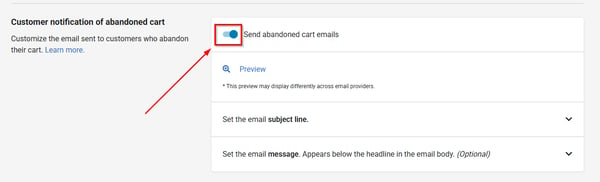
- Abandoned cart emails are enabled by default, but can be disabled.
-
When enabled, customers who abandon their cart during the latter stages of the checkout process, will receive an automated follow up email from your shop encouraging them to complete their transaction.
- To disable abandoned cart emails, navigate in Admin to Settings > Notifications, scroll down to the "Customer notification of abandoned cart" section and toggle it off.
Set the subject Line
- To edit the subject line click the down arrow next to "Set the email subject line" and then click "Edit subject line".
- The default subject line is "Did you forget something?"
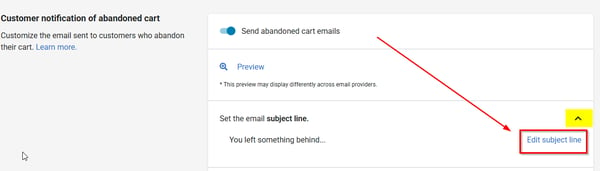
- Enter the new subject line and click "Save".
Set the Email Message
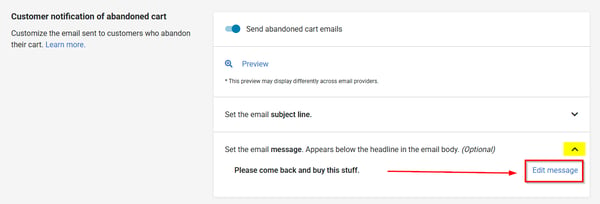
- To add an email message click the down arrow next to "Set the email message.....", and then click "Edit message".
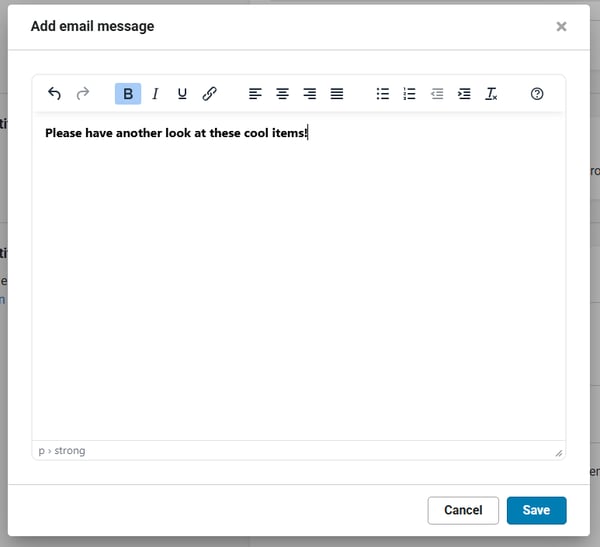
- Add your message, edit it as you like and click "Save".
- The message will display below your store logo and above an image of the items that were in your customers cart.
The logo that displays in the email is the same logo that's found in Settings > Website > Store information.
- The email message is optional, so if one is not added only the images of the items in your customers cart will appear in the email.
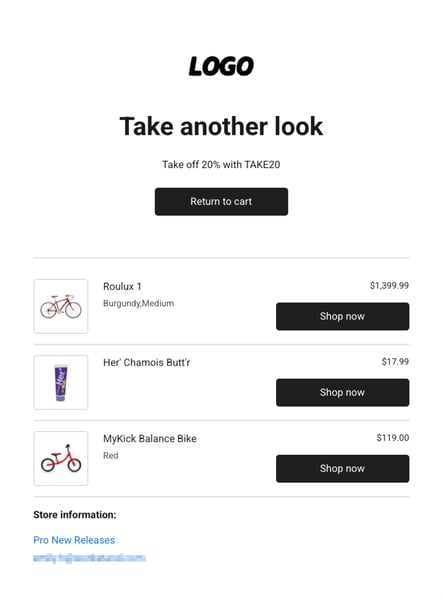
When clicked, the newly added "Return to cart" button, will take your customer directly to the cart they built.
FAQs
How does it work?
-
Abandoned cart emails are triggered after a customer has gotten to the last stage in checkout but hasn't completed their order.
-
If their cart sits unmodified for an hour, we will send a reminder email to the billing email the customer entered.
-
We do not track customers by any other means and we do not purchase email lists from other services.
How do I set the "from address"?
-
These emails will be sent from the address you have set for order confirmations in Order Notices.
How do I gauge the effectiveness?
-
We have added a UTM that you can track in Google Analytics.
The UTM to watch for is:
?utm_source=checkout&utm_medium=email&utm_campaign=cart_reminder