
About
- A banner is a section that, when active, displays above the header on every page of your website.
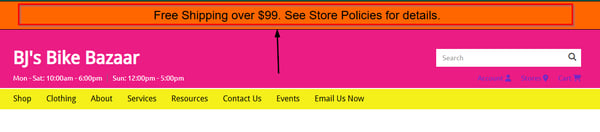
- A banner can be used to promote a new sale, disseminate a discount code, alert customers of hours of operations changes, etc.
- It can include basic information, a call to action, a link to another page, or a combination of those.
Create/Edit a Banner
- To create a new banner, or edit an existing one, navigate in Admin to Website > Banner editor.
- To edit an existing banner, click the green pencil in the action column next to that banner.
The banner that is currently displaying on your website will be denoted by the presence of a gray pill that says, "Live on website".
- To create a new banner click "Add new banner" at the top of the screen.
- Unless you have HTML code to add we recommend leaving the default selection of "WYSIWYG Editor" checked.
- Enter the banner name, select the "Active" box, and enter and format the text in the Banner content section.
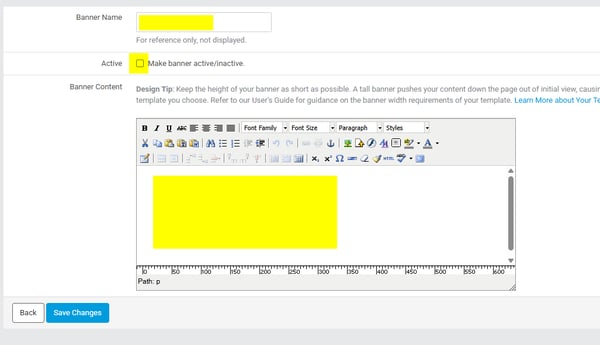
- When done, click "Save changes" at the bottom of the page before navigating away.
Select the Banner to Display
- After the banner is created and set to Active, it must be selected to display in Site Settings before it will be visible on your website.
- To select the banner to display navigate in Admin to Settings > Website > Site settings.
- In the Default site settings under the Banner section, select the banner from the drop-down menu and then click "Save changes".
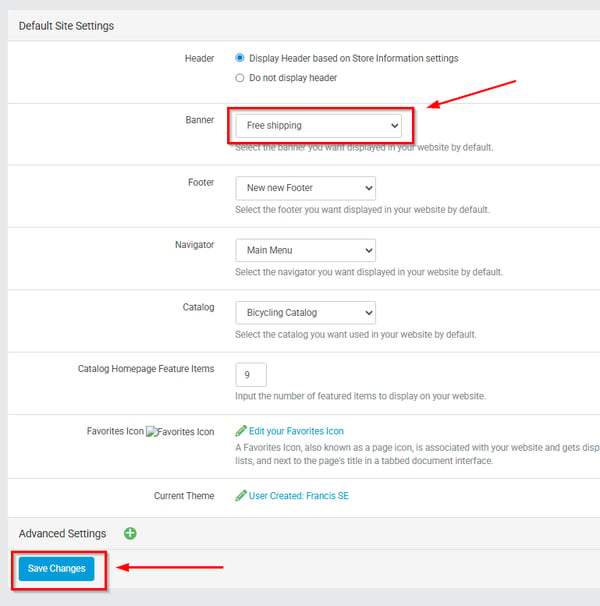
- Click "publish changes" from the bell icon in the header or from the Website menu to make the changes visible on the front end of your site.