
About
- Fulfillment by category will allow shipping rates to be determined by category vs by weight & price-based shipping rules.
If you use Google Ads, be sure to update the rates in your Merchant Center to match the rates you set for your website. Do we manage your ads? Reach out to your Ads Manager.
Checkout
- To enable fulfillment by category, navigate in Admin to Settings > Fulfillment > Fulfillment by category.
- Toggle on "Use category-based fulfillment settings in checkout" and save changes after you have made your category fulfillment choices below.
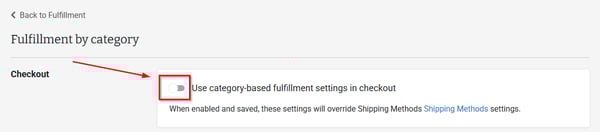
When enabled and saved, these settings will override and replace current Shipping Methods.
Shipping
Define default and category-specific shipping rates, and optionally offer free shipping.
Default Rate
- The default shipping rate is used for products that do not have a category rate and is charged once per order.
- To set a default rate navigate in Admin to Settings > Fulfillment > Fulfillment by category and toggle on the type(s) of shipping you would like to offer (Standard and/or Expedited).

- Click "set price" and enter the default amount you would like to charge in the Standard and/or Expedited rate box and click "Save".

A product MUST be shippable by "Air" in order for Expedited shipping to be available during checkout.
Category Rate
-
Under "Shipping" click "Add category rate" to add a category rate.
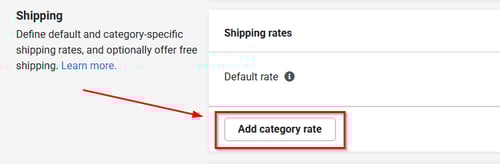
- Click into the "Add categories" box and expand the categories until you see the category you'd like to select and then select it.
- Click "Set price" and enter the rate for that category and click "Save".
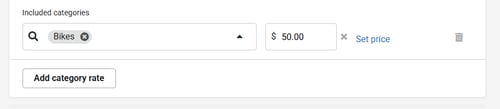
- Click "Add category rate" to add additional rates for other categories (if desired).
Free Shipping & Excluded Categories
- To turn on free shipping, toggle on "Offer in checkout".

- To set the free shipping threshold click "Set threshold", and then enter the threshold amount.
- Once free shipping is enabled a threshold must be set.
- The threshold can be as low as $0.00.
- Excluded categories will always be charged their applicable shipping rate, either the default rate or their category rate, regardless of whether the cart meets the free shipping threshold.
- Free shipping is calculated based on your cart value after any discounts are applied, including items in excluded categories.
Important: Setting a category rate does not automatically exclude that category from free shipping.
- If free shipping is active, it will override any category rate unless the category is explicitly excluded.
- To ensure a category rate is always charged, you must also exclude that category from free shipping.
Free shipping thresholds apply to standard shipping only. Expedited shipping is not eligible.
Home Delivery
- Choose where home delivery is available and set rates.
- To offer Home delivery in checkout, toggle on "Offer in checkout".
- Click into included postal codes box and enter the postal codes you'd like to include.
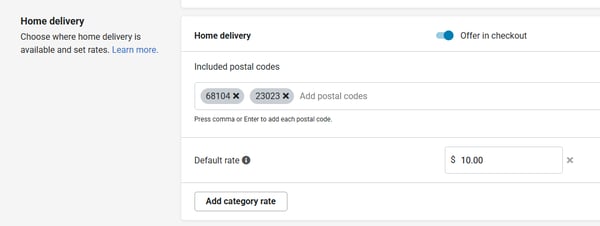
- Default and category rates can be set following the same process as for setting them in Shipping.
Pickup
- By default, if Fulfillment by category is enabled, in-store pickup is always available during checkout and is always free.
- Check the corresponding boxes to include warehouse shipping times (set in Supplier Sync settings), and to include store transfer time.
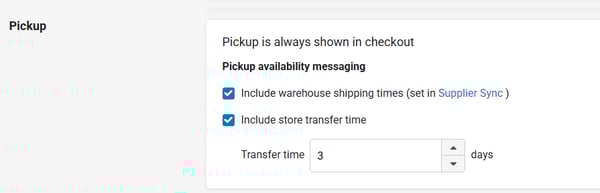
- Click "Save" after any changes are made.
Guidance & Tips
- The default shipping rate is charged once PER ORDER. Category rates are charged PER ITEM.
- If a category rate exists for an item, it is used instead of the default rate and the default rate is NOT also charged.
- Category rates apply to their configured categories and anything in subcategories of the configured categories. e.g. a rate for bikes applies to products in bikes > mountain.
- If a product is in more than one category that has a shipping rate assigned and each category has a different rate, then the most specific category ( and subsequent rate) will be assigned.
- A products most specific category is determined by our backend shipping rates table, in which each item and all their associated categories are ranked in order of specificity.
- If multiple category rates have the same specificity (rare) the highest price is used.
- The total shipping charge in checkout is the sum of the category rate charges for each item, plus the default rate once per order for any items without a category rate.
- These rules apply to shipping and home delivery.
- Example: If a customer orders a bike and helmet then the category rate for each item will be charged.
- 1 Bike ($200 category rate + 1 Helmet + Water Bottle (share $5.00 default rate) = $205 shipping total