
About
-
Inventory search is a new feature for Workstand POS where merchants can search for their products, with the intention of being able to quickly view and update QOH by location for individual SKUs.
-
The products visible on the Inventory Search page are those that have been imported into Inventory > Products (unimported library products are not visible here).
- Basic information, as well as the ability to update QOH by location, can be viewed by clicking into a SKU.
- For multi-location stores, the location can be changed in the upper right hand corner of the list and details page.
- If you use an external POS and POS Sync, you can search and view the inventory of mapped products here as well, but inventory edits for mapped products will be overwritten by the next POS Sync process.
Using Inventory Search
- To begin, navigate in Workstand to Inventory > Inventory Search.
- Using the drop-down menu, select the criteria you would like to search by (Product name, UPC, MPN, Store SKU, or Item ID), the default is "Product name".
- Enter a search term in the search field and items matching items will auto-populate.
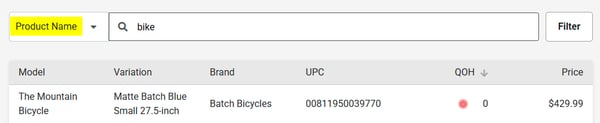
- If desired, click the Filter drawer to filter by Availability (In stock or Out of stock), Brand, Category and/or Price (min & max).

- Click into the item to view the details and adjust the QOH.
- If changes are made to the QOH, click "Save" before navigating away from the page.
- The location can be changed by clicking the location drop-down in the upper right corner.
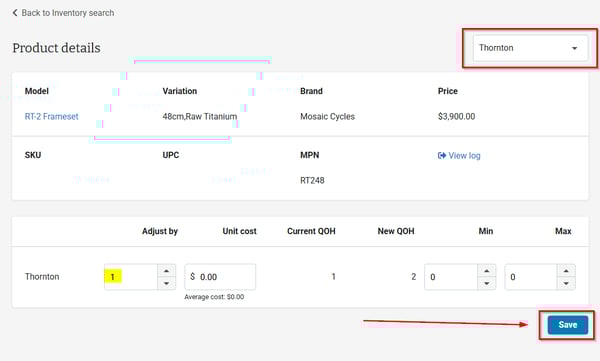
- Once you are done making changes, click "Back to Inventory search" to return to the list.