
| Remove Margin Top | Vertically Center a Headline Section |
| Remove Margin Bottom | Change Tune-Up Colors |
| Add Padding to Text Over Image | Transparent Overlay for Images |
Remove Margin Top from Page Header and/or Footer -1.png?width=30&height=30&name=small%20owl%20video%20play%20(30%20x%2030%20px)-1.png)
-
Use to remove the whitespace between the header and a hero image, or an image or background color section above the footer.

- Add the following code to Page Settings > Styles.
/* HEADER */ .sePage .sePageMain { margin-top: 0px; }
/* FOOTER */ .sePage .sePageFooter { margin-top: 0px; }
Remove Margin Bottom from a Section
-
Remove the space between two sections by adding this to the first section.
- Edit Section and add the following class to remove the default bottom margin.
se-section-margin-b-zero
Add Padding to Text Over Image Section
-
Increase the height of a background image section (such as a homepage hero).
-
This works if the image is in Column Settings or Section Settings.
-
- Edit Section and add the following class to the section:
se-section-hp-hero - Add the following code to Page Settings > Styles
/* HERO PADDING */ .se-section-hp-hero .block-bg-img { padding: 12% 15px; }
*Note: Adjust the first value (12%) to achieve your desired height.
Vertically Center a Headline Section
-
Use when you put a background color on a centered headline section.
-
By default, the headline has margin-top: 22px; margin-bottom: 11px.
-
Adding the following class will even out the vertical spacing.
-
- Edit Section and add the following class to the section to add 11px of padding to the bottom of the section.
se-section-padding-eq-sm
Change Tune-up Colors
-
Change the background colors for the 1, 2, 3, or 4-column section called Tune Up.
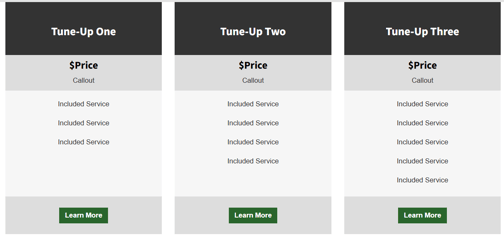
- Edit Section and add the following class
tune-up-color - Add the following snippet to Page Settings > Styles.
- Adjust the color code to be your colors of choice
.tune-up-color .price-header {background-color: #37827D;}
.tune-up-color .price {background-color: #589994;}
.tune-up-color .price-figure {background-color: #589994;}
.tune-up-color .features {background-color: #95D6BE;}
.tune-up-color .price-footer {background-color: #37827D;}
- Adjust the color code to be your colors of choice
Transparent Overlay for Images
- Please contact Workstand Support for help with this.