| Full Refund & Return | Exchange with Refund Due |
| Partial Return with Refund | Exchange with Payment Due |
| Partial Refund |
Full Refund & Return
- When a customer wants to return everything they ordered and receive a refund, a full refund will be issued.
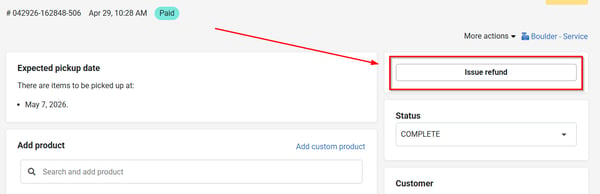
- To do this, navigate to the ecommerce sale (Sales > Sales) you wish to refund and click into it.
- Click "Issue refund".
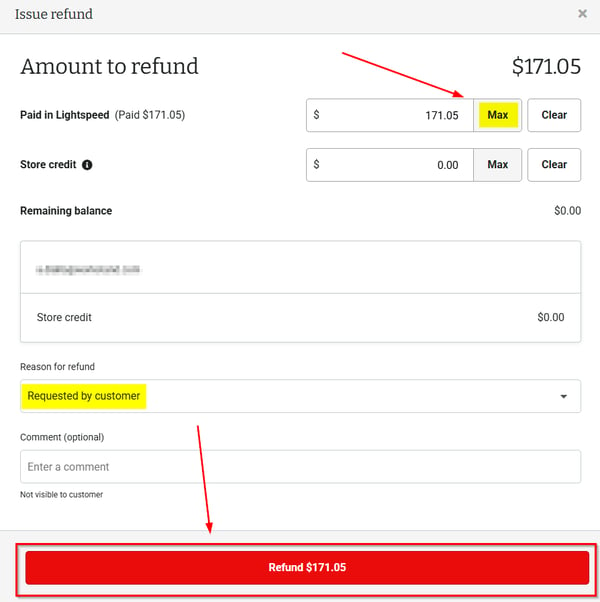
- Click "Max" to populate the full refund amount, select a reason for the refund and then click "Refund XXX.XX".
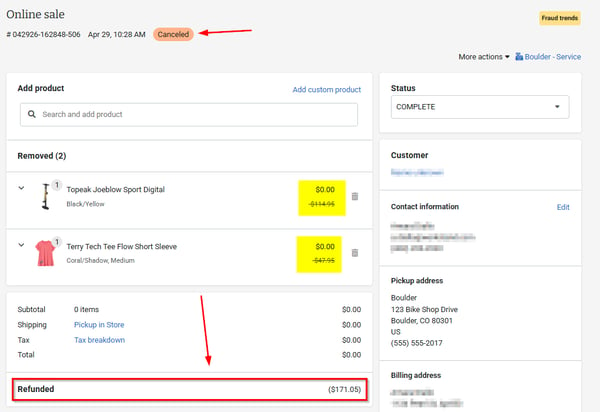
- When the full refund is issued the items in the order are returned, and the payment status changes to "Canceled".
Important note: When first entering the sale details, the "Issue refund" in the upper right corner is for FULL REFUNDS. If you wish to perform a partial return and/or refund follow the below steps.
Partial Return with Refund
- When a customer wants to return an item, or items, in a sale, but not all items, a partial return & refund will be issued.
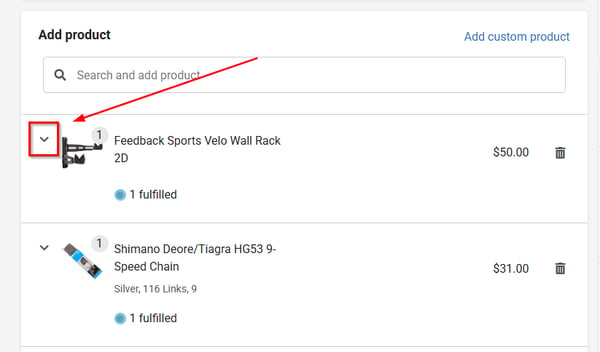
- Navigate to the sale (Sales > Sales) details and click the down arrow next to the product to be returned.
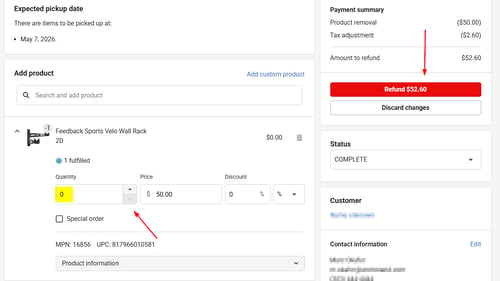
- Change the quantity of the item to "0".
- The amount to refund is then auto-populated.
-
- If other items need to be returned repeat the same process for each item.
- As more items are returned, the amount to refund will also increase.
- If other items need to be returned repeat the same process for each item.
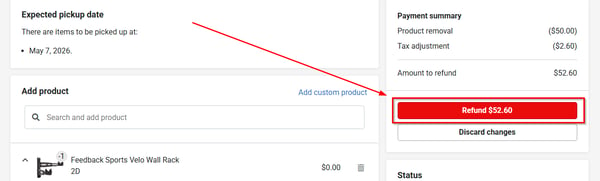
- When all items have been returned, click "Refund XX.XX".
-
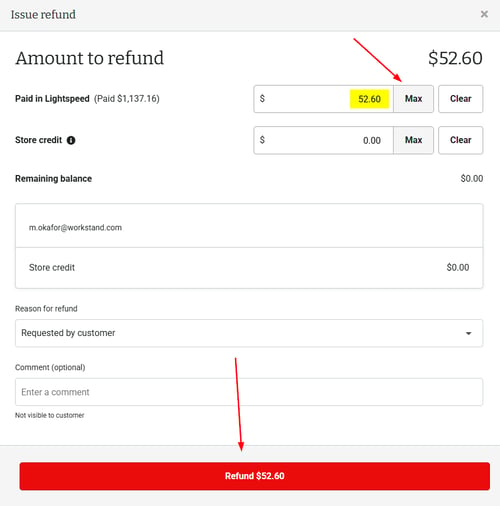
- Click "Max" to auto-populate the max amount that can be refunded and click "Refund XX.XX".
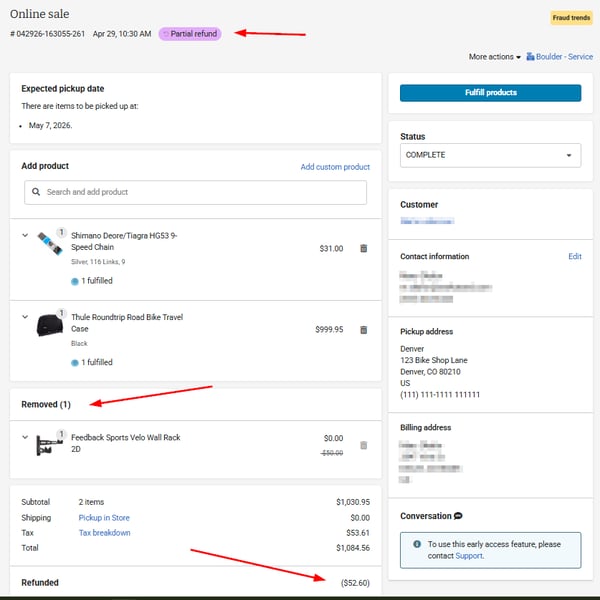
- The payment status will change to "Partial refund", the removed items will be indicated below the kept items, and the amount refunded will display.
Partial Refund
- Partial refunds are issued when the amount to refund isn't the full amount paid for an item.
-
- Example 1: If a customer wants to return an item(s) shipped to them and you do NOT want to return the shipping cost, a partial refund will be issued.
- Example 2: After the sale is complete, you discover the customer is eligible for a discount and would like to refund that discounted amount.
-
- Example 3: You find out after the sale has been paid that there are tax exempt items in the sale, a partial refund will be used to refund the tax.
Example 1 (Keep shipping cost)
-
Within the sale details, locate the item that is being returned and click the down arrow next to it to view more options.
- The price of the item has to be adjusted to produce the desired refund amount.
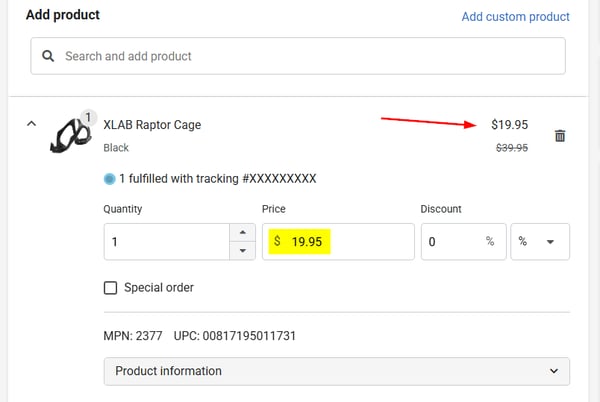
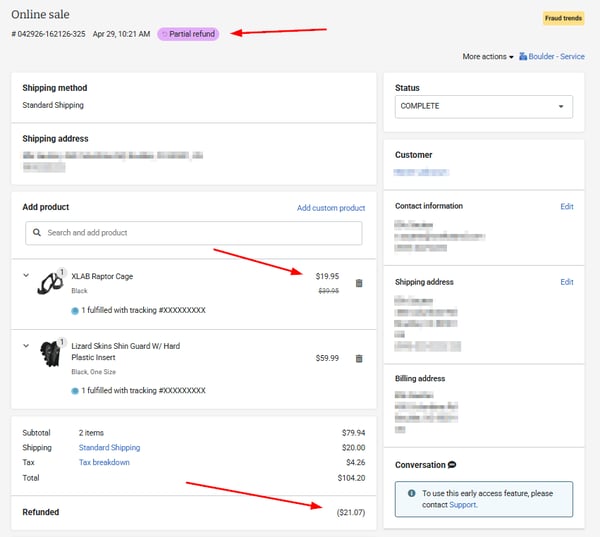
- If the price of the item is $39.95 and $20.00 in shipping will not be refunded, the price of the item must be changed to $19.95 ($39.95 - $20.00).
- Click into the Price field and enter the new price ($19.95).
-
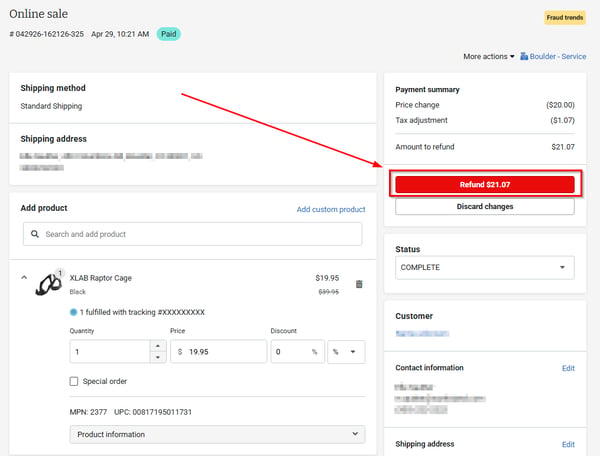
- The amount to refund will auto-populate.
- Click "Refund XX.XX".
- Click "Max" to populate the max amount that can be refunded and click "Refund XX.XX".
- If desired, enter a comment explaining the refund.
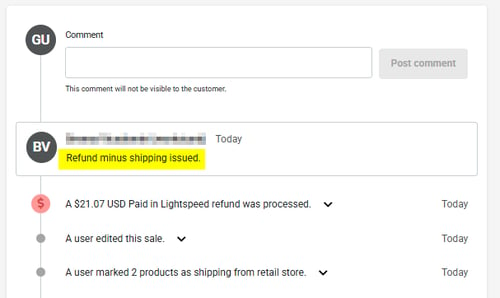
- The payment status will change to "Partial refund" and the new price of the item will be indicated, as well as the refunded amount.
Example 2 (Apply a discount)
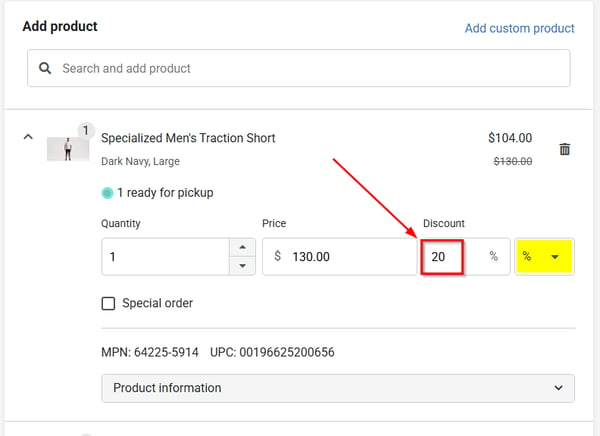
- Within the sale details, locate the item that will be discounted and click the down arrow next to it to view more options.
- Enter the discount amount. (Can be entered as a percentage or dollar amount.)
- Follow the same procedure to discount additional items.
- Once all items have been discounted, click "Refund XX.XX" to refund the discounted amount.
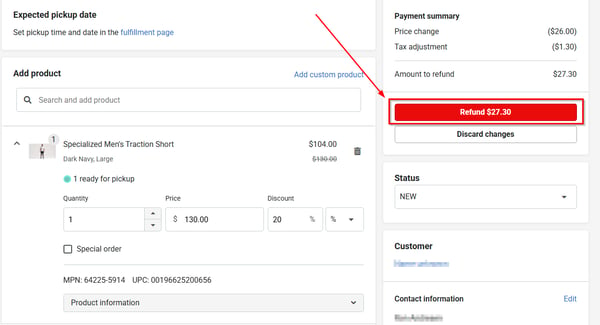
- Click "Max" to populate the amount to be refunded and click "Refund XX.XX".
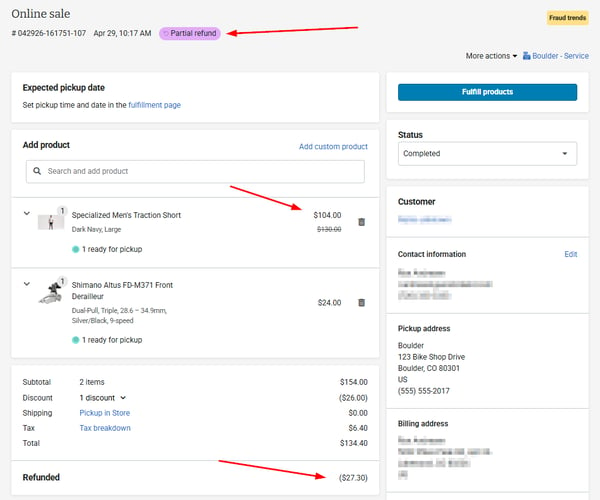
- The payment status will change to "Partial refund", the new discounted price of the item will display as well as the refunded amount.
Example 3 (Refund tax)
-
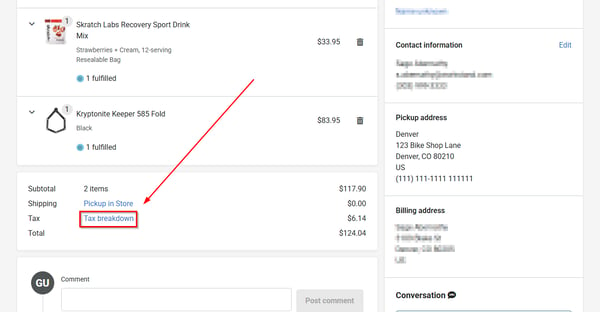
Locate the affected order and navigate to the sale details.
- Scroll toward the bottom of the sale and click on "Tax breakdown".
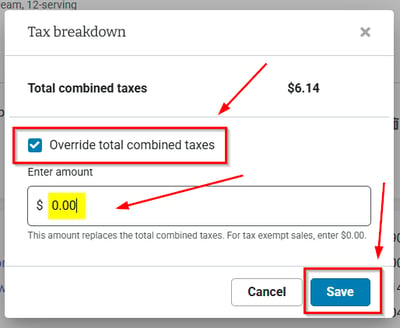
- Check the "Override total combined taxes" box, enter $0.00 for tax exempt, and click "Save".
-
- If the items are not tax exempt and you need to reduce, rather than eliminate, the tax charged, enter the new tax amount to be charged and click "Save".
- Scroll up to the payment summary section and click "Refund $X.XX".
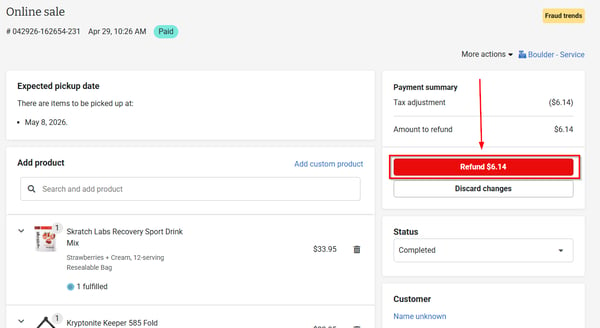
- Click "Max" to populate the amount that can be refunded, and then click "Refund $X.XX".
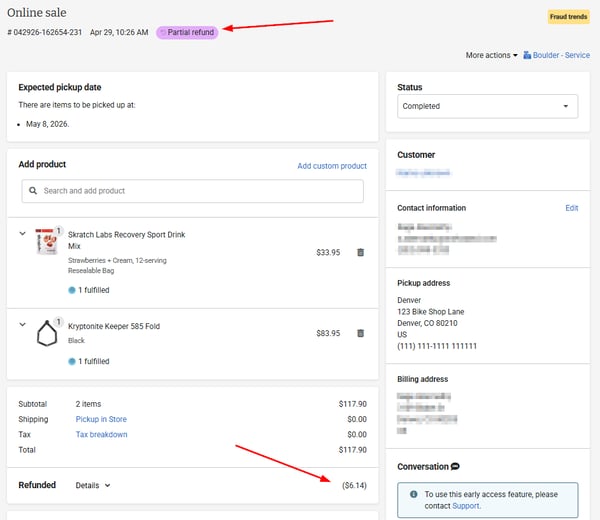
- The payment status will update to "Partial refund" and the amount refunded will be visible after the sale totals.
Exchanges
Exchange with refund due
-
If a customer wants to exchange an item they purchased for a lesser priced item then an exchange with refund will need to be performed.
- Begin by navigating to the sale details of the applicable sale.
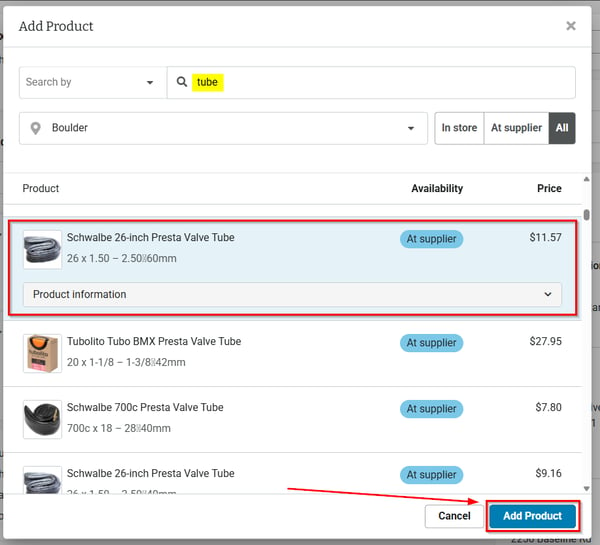
- Click into the "Add product" search bar, search for the item you wish to add, click on the item and then click "Add Product".
-
- The new item will now display in the product list in the sale details.
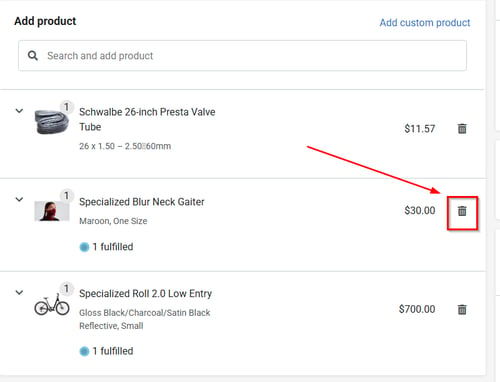
- Next, click the trash can icon next to the item they are exchanging.
-
- The quantity of that item will change to "-1" and the price will change to $0.00, but for record keeping purposes the item will not disappear from the sale.
- To issue the refund, click "Refund $XX.XX".
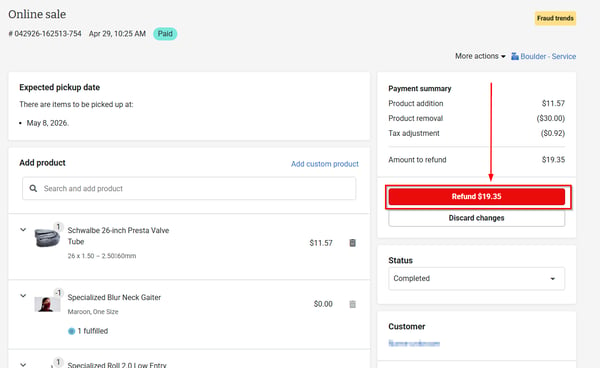
- Click "Max" next to populate the max refund amount, and then click "Refund $XX.XX".
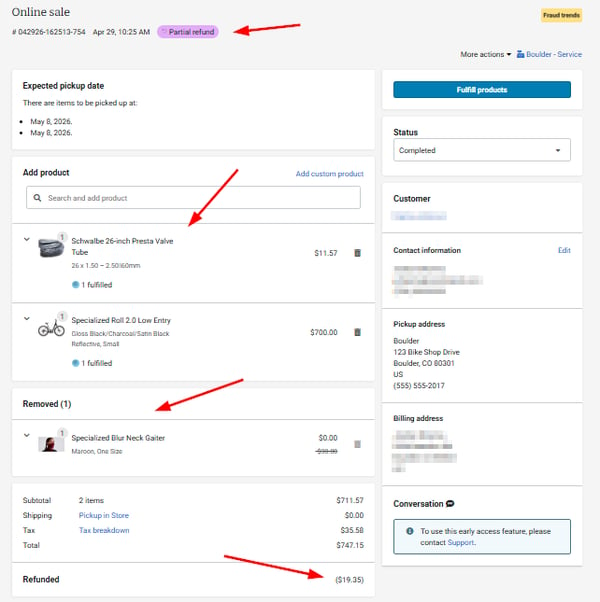
- The payment status will change to "Partial refund", both the newly added item and the removed item will be visible, as well as the refunded amount.
Exchange with payment due
-
If a customer wants to exchange an item they purchased for a higher priced item then an exchange will need to be performed and additional funds collected.
- To begin, navigate to the sale details of the applicable sale.
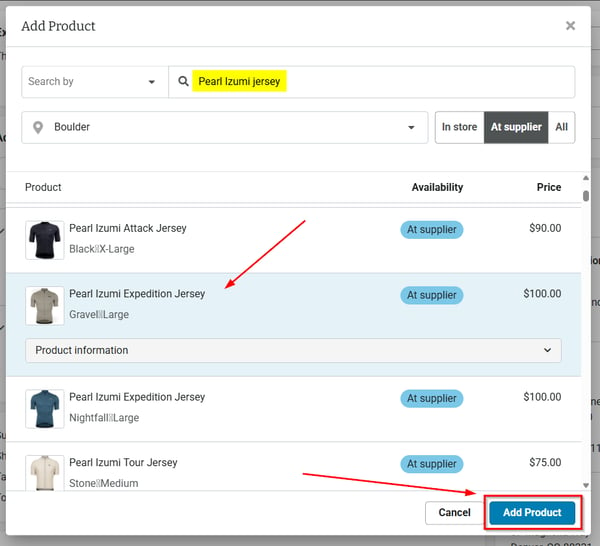
- Click into the "Add product" search bar, search for the item you wish to add, click on the item and then click "Add Product".
-
- The new item will now display in the product list in the sale details.
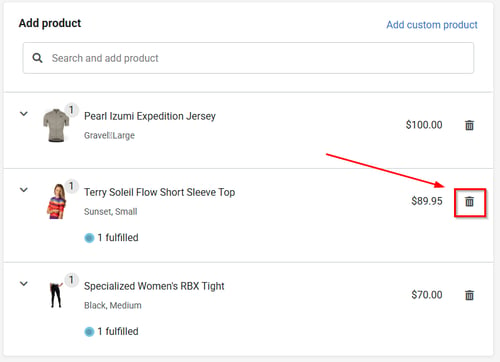
- Next, click the trash can icon next to the item they are exchanging.
-
- The quantity of that item will change to "-1" and the price will change to $0.00, but for record keeping purposes the item will not disappear from the sale.
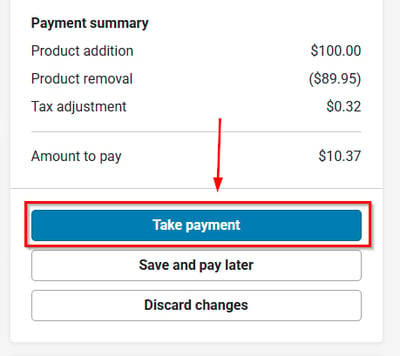
- In the payment summary section, click "Take payment".
- The amount added, amount removed and amount to pay will be visible.
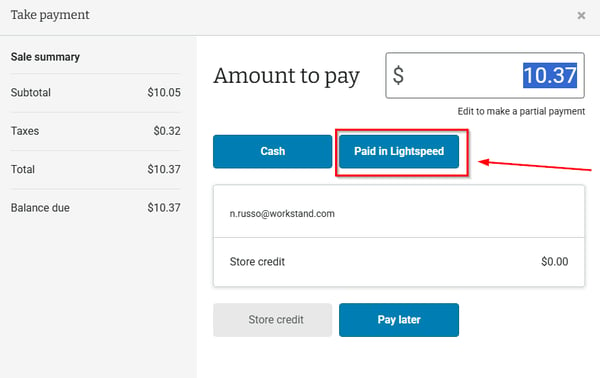
- Click on the desired payment method to record payment.
-
- If desired, enter a comment, and then click "Take payment" again to confirm.
- Both the newly added item and the removed item will be visible and in the sale timeline, a record of the additional payment taken will be noted.