
| Connect Stripe Account | Toggle On Stripe |
| FAQs |
Once Stripe is connected, see these related articles to confifigure additional options:
-
Payment Methods & Express Checkout - Google Pay, Apple Pay, Amazon Pay, Link & Affirm info.
- Payment Capture, Fees, & Disputes - automatic/manual payment capture, processing fees, chargebacks & fraud info.
Connect Stripe Account
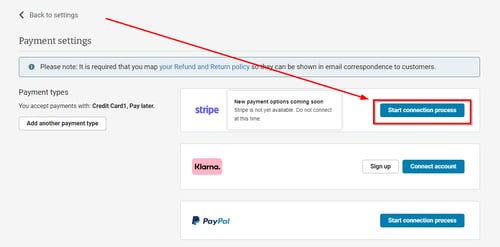
- In Admin, navigate to Settings > Commerce > Payment settings.
- In the Stripe box, click "Start connection process".
-
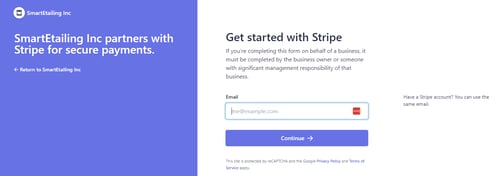
- This will take you to a separate screen where you must log in to your Stripe account.
-
- If you haven't started setting up a Stripe account, you can do this now, or finish the setup and verification if you've already started.
- Once logged in, select the Stripe account you'd like to connect to and click "Connect".
- You will then be directed back to the Payment settings screen in Admin, with Stripe connected.
Toggle On Stripe
- The final step is to toggle on Stripe in payment settings:

- Once Stripe is toggled on, your customers will be able to pay using a credit card and other payment options offered by Stripe.
FAQs
How do I contact Stripe?
- Stripe support can be accessed by clicking "Help" in the top right menu of your Stripe dashboard. You can also chat, have Stripe call you, or email them.
Can I use an existing Stripe account?
- Yes, you can log in to your existing account in Workstand Admin, as long as the account is not a Stripe Express account.
- A Stripe Express account will not connect. If you have an existing Express account you will need to create a new account using a different email address before you can connect to Workstand.
When will I receive payouts?
- Typically, when you start processing live payments, Stripe schedules your initial payout for 7–14 days after you successfully receive your first payment.
- In some cases, the first payout might take longer, depending on the country of operation or industry risk level.
- Subsequent payouts follow the schedule that you define in your account’s payout schedule.
Is there a different rate on card-present (POS) vs. card-not-present (website) transactions?
- Yes, Stripe’s base rates are:
- 2.7% + $0.05 per transaction in-store
- 2.9% + $0.30 per transaction online.
- Our platform fees are flat and tied to your Workstand package level.
| Total Rate | Retail POS | Core | Plus | Professional |
| In-Store | 3.2% | 3.1% | 3.1% | 3.0% |
| Online | 3.3% | 3.3% | 3.2% |
- There are no monthly, batch, or other fees.
- You may be able to negotiate with Stripe for a lower base rate.
- Additional fees for manual card entry, international cards, etc. may apply. See Stripe's pricing page for details.
Can I refund a credit card payment from Sale Details?
- Yes.
- Click here for more information on Refunding a Website sale in Sales (Classic) & here for refunding in Sales Hub.
Are credit card fees returned on refunded payments?
- No, Stripe does not return fees on refunds.
Will debit cards be treated differently than credit cards?
- No, credit and debit transactions will have the same rate and fees.
Will Stripe allow test transactions, or for the owner/account holder to make transactions with a credit card to their own account?
- No, the Stripe Services Agreement prohibits testing in live mode using real payment method details.
Does Stripe onboarding allow us to set the Statement Descriptor that appears on a consumer's credit card statement?
- Yes, set and update your statement descriptor in your Stripe dashboard: https://dashboard.stripe.com/settings/public
Does Stripe offer manual and automatic capture? What will the default be?
- Yes, manual capture is off by default but may be enabled by checking the manual payment capture box in the Stripe payment method section in Admin > Settings > Payment Methods.
- Manual payment capture must be completed within 7 days.
Does Stripe Online accept Apple Pay and Google Pay?
- Yes. Click here for instructions on adding each.