
Express Checkout (wallets)
- Express Checkout lets customers pay with one click using a saved payment method from Google, Apple, Amazon, & Link.
- Express Checkout is only available for shipped orders.
- Google Pay, Apple Pay, & Amazon Pay use the same processing fees as standard Stripe credit card transactions — see Fees for rates by package.
- Payment methods available within each Express Checkout option cannot be changed.
- If you don't want to offer a specific payment method that a selected Express Checkout option offers then you must disable the entire payment method in your Stripe dashboard.
Google Pay
- Google Pay is enabled by default for all merchants (US & CA) using Stripe on new checkout, and can be turned off in Stripe payment methods if you don't want to offer it.
- Google Pay is only available for merchants using Stripe.
- Orders paid using Google Pay will be completed in the Google Pay pop-up in checkout.
- 3.3% + $0.30 per transaction for Core & Local website retailers.
- 3.2% + $0.30 per transaction for Professional website retailers.
-
- + 1.5% for international cards
- + 1% if currency conversion is required
Apple Pay
- Apple Pay is enabled by default and can be turned off in Stripe payment settings.
- Apple Pay will display as an option during new checkout AFTER your domain AND subdomain are verified in your Stripe account.
- 3.3% + $0.30 per transaction for Core & Local website retailers.
- 3.2% + $0.30 per transaction for Professional website retailers.
-
- + 1.5% for international cards
- + 1% if currency conversion is required
To verify your domain in Stripe:
- Log in to your Stripe account and navigate to Settings > Payment methods > Payment method domains, and click "+ Add new domain".
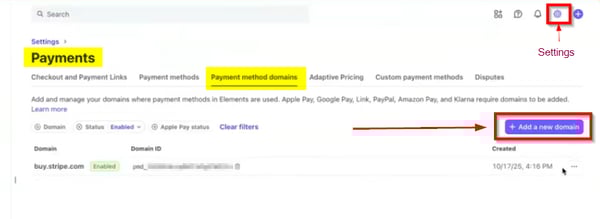
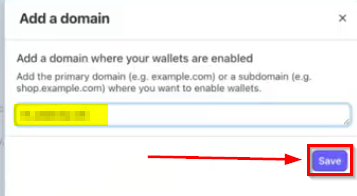
- First, add your domain in the format "yourbikeshop.com" in the slide-out and click "Save".
- You will receive a success message at the bottom of the screen indicating the domain has been added and verified.

- Repeat the above process, click "Add a new domain", and this time add your subdomain in the format "www.yourbikeshop.com".
- You should receive a success message at the bottom of the screen again.
BOTH your domain AND subdomain (yourbikeshop.com AND www.yourbikeshop.com) must be added for Apple Pay to be activated.
-
- If you don't initially see the newly added domains in the payment methods domains list, refresh the page, and it will populate.
-
- These will immediately be available as a payment method during checkout on connected devices.
Amazon Pay
-
Amazon Pay follows the same domain and subdomain verification process as Apple Pay (see steps above).
-
Repeat the process for Amazon Pay once your domains are verified.
-
- 3.3% + $0.30 per transaction for Core & Local website retailers.
- 3.2% + $0.30 per transaction for Professional website retailers.
- + 1.5% for international cards
-
- + 1% if currency conversion is required
-
$15.00 for disputed payments (excluding A-to-z Guarantee claims)
Link
-
Link is enabled by default for all merchants (US & CA) using Stripe on new checkout, and can be turned off in Stripe payment methods if you don't want to offer it.
-
Link is only available for merchants using Stripe.
-
Orders paid using Link will be completed in the Link pop-up in checkout.
- Card fees:
- 3.3% + $0.30 per transaction for Core & Local website retailers.
- 3.2% + $0.30 per transaction for Professional website retailers.
- Klarna fees:
- 6.39% + $0.30 per transaction for all retailers.
- + 1.5% for international transactions
- + 1% if currency conversion is required
Affirm
Affirm is a "buy now, pay later" option and is configured and priced separately.
- Affirm is enabled by default and there is no action needed to "turn it on".
- If you would prefer to not display Affirm at checkout, please Contact us, and we can disable it for your account.
- Unlike some Express Checkout Elements, Affirm has its own (higher) fee structure — 6.2% + $0.30 per transaction across all packages. See Fees for full details.
- Affirm may be available through Google Pay, Apple Pay, or Amazon Pay depending on your customers wallet settings.
- If a sale is paid using Affirm through Google Pay, Apple Pay, or Amazon Pay then the fees are the standard fee structure.
- Affirm payments must be captured from within your website admin (not from Stripe) — see Payment Capture for details.